Building Dependent Value set/ComboBox in Oracle VBS - A Practical Guide
In Oracle Visual Builder Service (VBS), one of the most common UI patterns you’ll implement is the dependent ComboBox—where selecting a value in one dropdown filters the options in another. This tutorial walks you through creating exactly that using a real-world scenario: filtering students by department.
There are two Business Objects used in this example:
- StudentBO – Contains all student data such as StudentId, Name, and Department (CS, EC, IT).
- DepartmentBO – Contains department master data such as DepartmentName and DepartmentId (CS, EC, IT).
We will use DepartmentBO to drive the first ComboBox and StudentBO to populate and filter the second ComboBox based on the selected department.
What You’re Building
By the end of this tutorial, you’ll have:
- ComboBox 1 (Department): Lists CS, IT, and EC departments
- ComboBox 2 (Student): Filters to show only students from the selected department
- Live Filtering: Second ComboBox updates instantly when department changes
Step 1: Add ComboBox 1 (Department)
- Drag a Combobox (One) component into the Form Layout
- Set its properties:
- Label: Department
- ID: departmentCombo
- Placeholder: Select a department
- Click Quick Start → Add Data
- In the wizard:
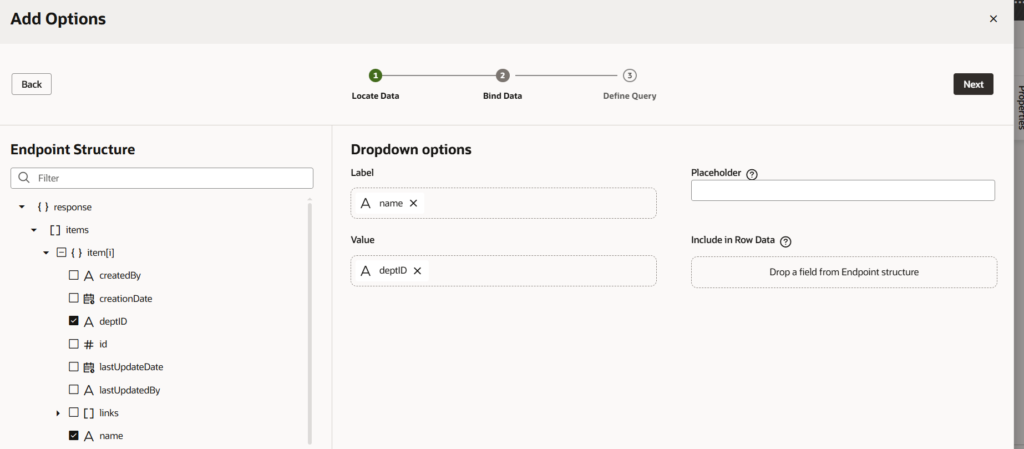
- Select Business Object: DepartmentBO
- Label Column: DeptName (what users see)
- Value Column: DeptId (what gets stored: CS, IT, EC)
- Click Finish
Why Label vs Value Matters: The label (DeptName) is user-friendly (“Computer Science”), while the value (DeptId) is what we’ll use to filter the second ComboBox. This is the key to making the dependency work.
Step 2: Add ComboBox 2 (Student) with Initial Filter
- Drag another Combobox (One) below ComboBox 1
- Set its properties:
- Label: Student
- ID: studentCombo
- Placeholder: Select a student
- Disabled: true (optional, enables after department is selected)
- Click Quick Start → Add Data
- In the wizard:
- Select Business Object: StudentBO
- Label Column: Name (show student names)
- Value Column: StudentId (store student IDs)
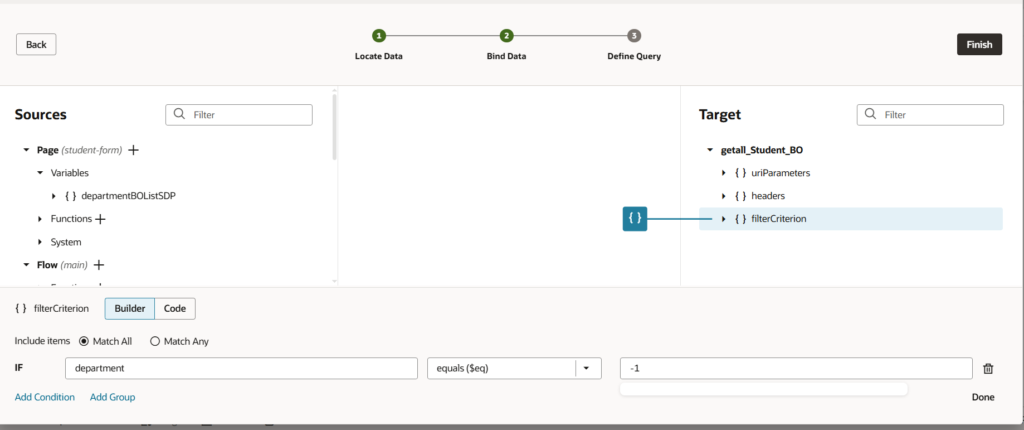
- This is critical: In the Filter Criteria section:
- Click + Add
- Attribute: Department
- Operator: equals
- Value: -1
The -1 value ensures ComboBox 2 starts empty. When the page loads, it won’t fetch any students because no department is selected yet.
- Click Finish
Additional Configuration (Important)
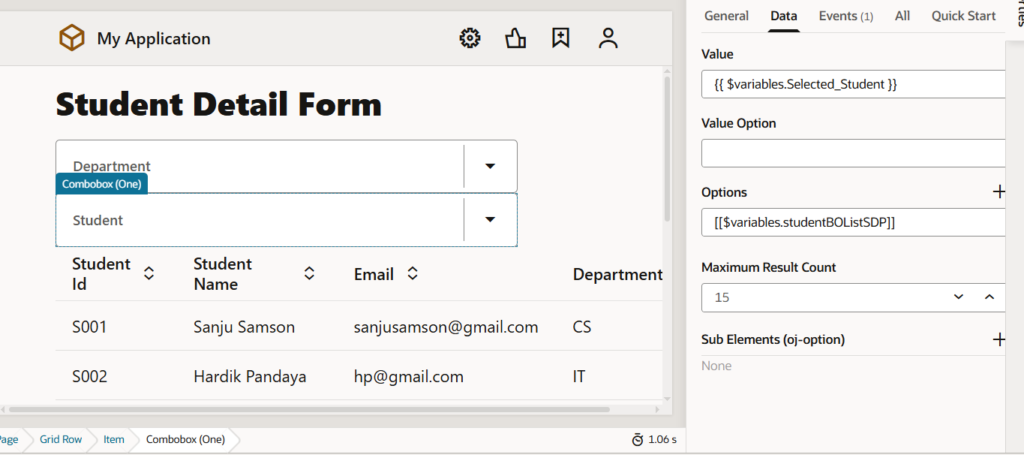
In the ComboBox properties Data tab, set the Value field to $variables.Selected_Student.
Create this variable manually. It will be used later to reset the Student ComboBox whenever the Department selection changes.
Step 3: Create the Magic—Add Event Listener to ComboBox 1
This is where the dependent filtering happens. When a user selects a department, we update ComboBox 2’s filter to show only students from that department.
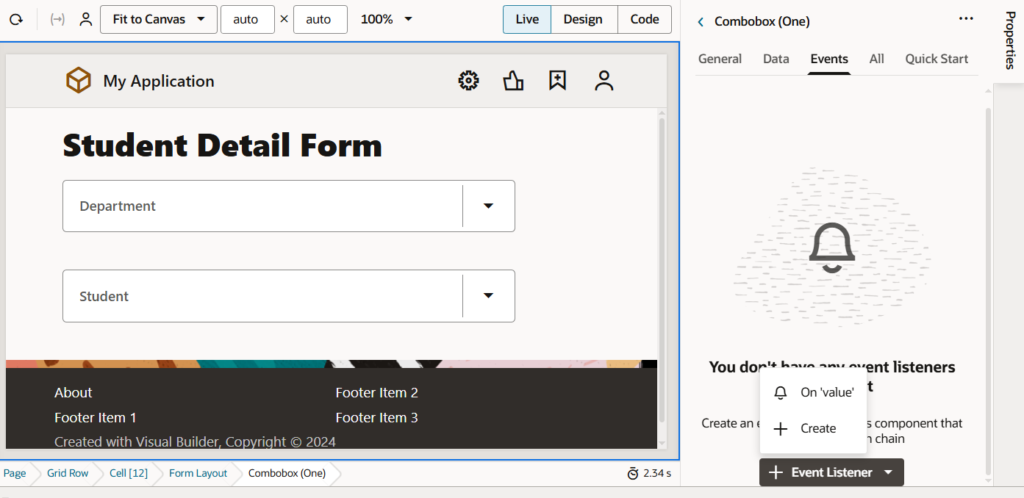
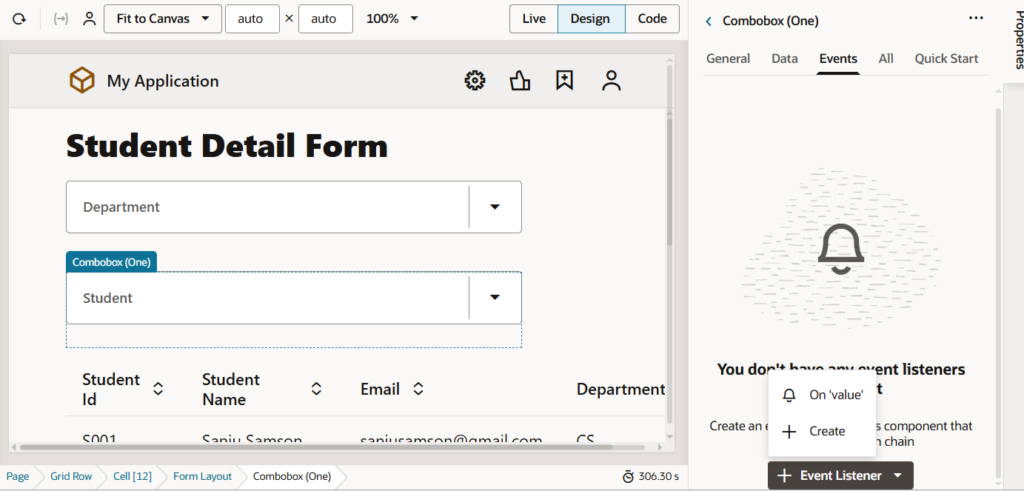
- Select ComboBox 1 (Department)
- Go to the Events section in Properties
- Click + Add Event
Select on Value (triggered when user selects a value)
5. VBCS will ask to create an Action Chain. Click Create New Action Chain
6. Name it: onDepartmentChange
7. Click OK
Step 4: Configure the Action Chain to Update ComboBox 2 Filter
You’re now in the Action Chain editor. This is where you tell VBCS: “When department changes, update the student ComboBox’s filter.”
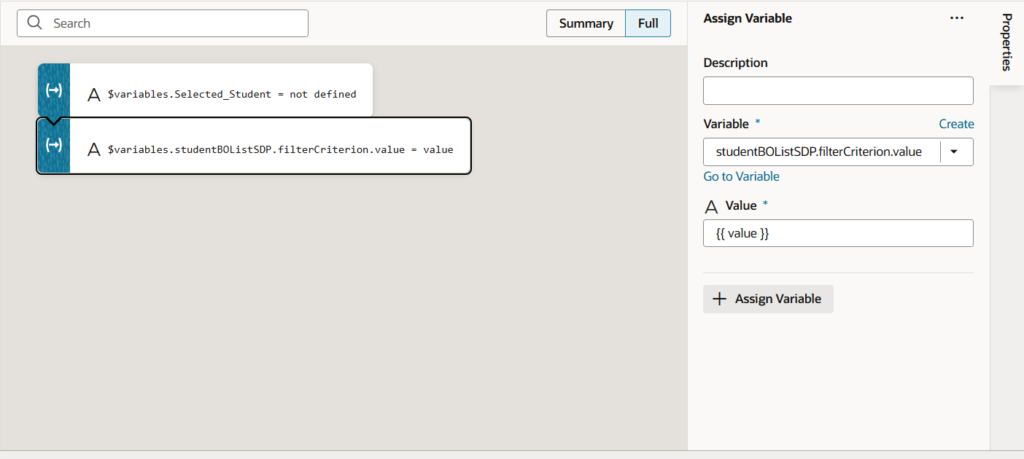
1. Reset Student ComboBox
Add an Assign Variables action at the beginning of the action chain:
• Variable: Selected_Student
• Value: undefined
This clears the Student ComboBox whenever the Department changes.
2. Update Student SDP Filter
Add another Assign Variables action:
• Target: studentBOListSDP.filterCriterion.value
• Value: {{ value }}
This expression means: “Take the Department value the user just selected and use it as the new filter value for students.”

What Just Happened: – Initial state: Department = -1 (shows no students) – User selects “CS” department – Event fires → onDepartmentChange action chain runs – Filter updates: Department = CS – ComboBox 2 re-queries and shows only CS students (Raj Kumar, Priya Singh)
Step 5: Test Your Dependent ComboBox
- Preview/run your application
- Verify ComboBox 1 shows all three departments
- Verify ComboBox 2 initially shows no options (empty due to -1 filter)
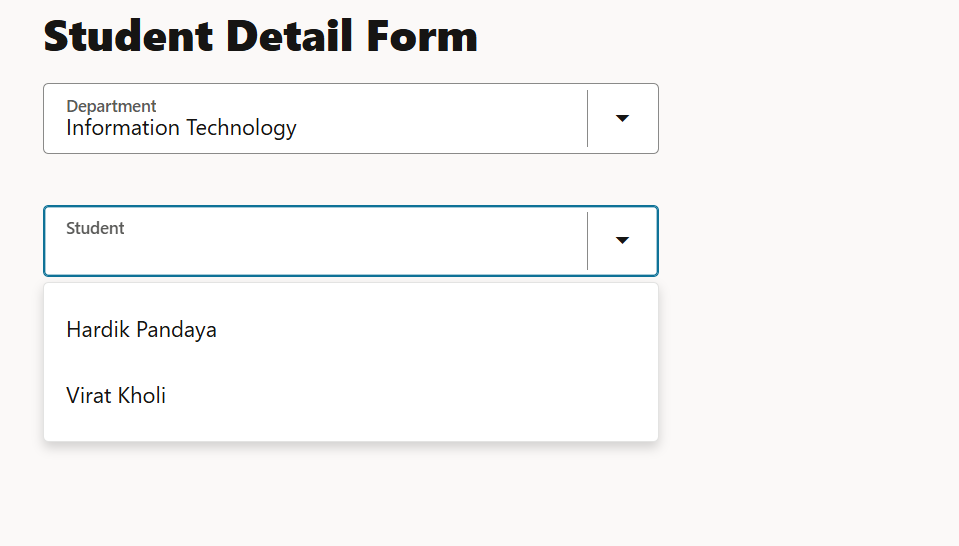
- Select a department in ComboBox 1
- Watch ComboBox 2 update with filtered students
Test all three departments: – Select CS → See Sanju Samson, Yuvraj Singh – Select IT → See Virat Kohli, Hardik Pandya – Select EC → See Rohit Sharma, Abhishek Sharma
Step 6 : Add a Results Table
To show student details after selection:
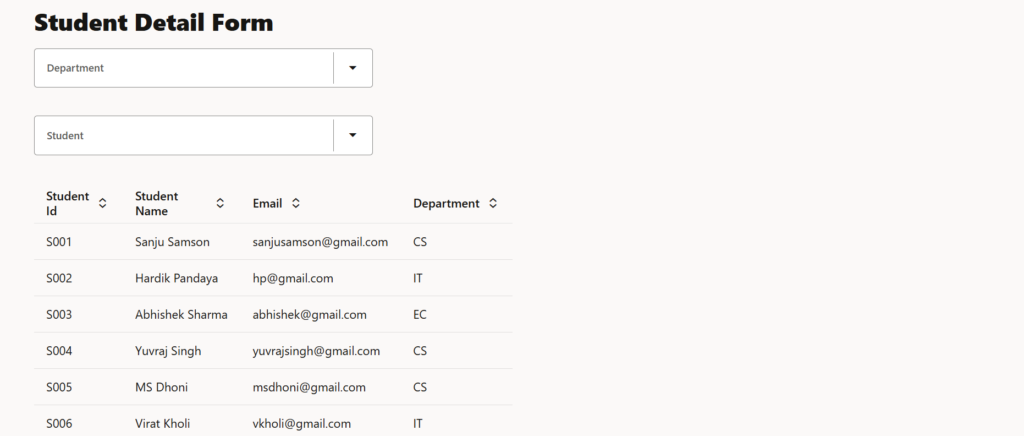
- Drag a Table component below the ComboBoxes
- Click Quick Start → Add Data
- Select StudentBO and add columns: StudentId, Name, Email, Department
- It will show the whole student data:
5. Select ComboBox 2 (Student)
6. Add on Value event
7. Create action chain: name it onStudentChange
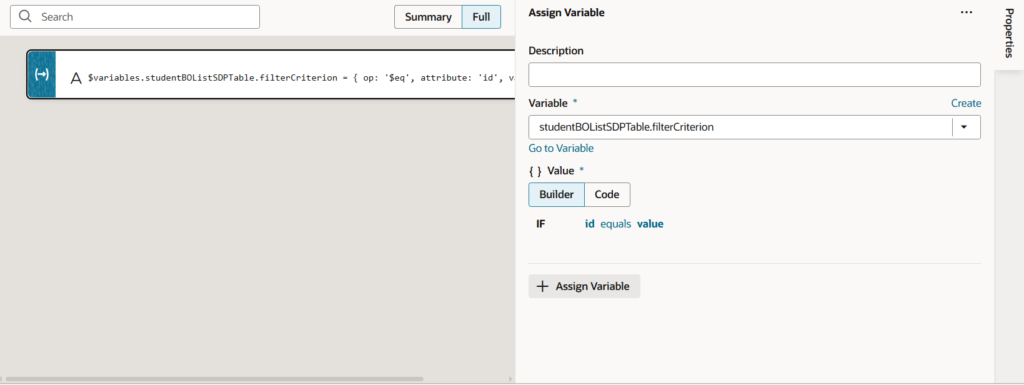
8. Use Assign Variables to update table’s filter with the selected StudentId, so it will show only filtered data.
9. From the Actions panel, drag an Assign Variables action onto the canvas
10. Choose the variable that is linked to the table component then select studentBOListSDPTable.filterCriterion and add the condition id equals value.
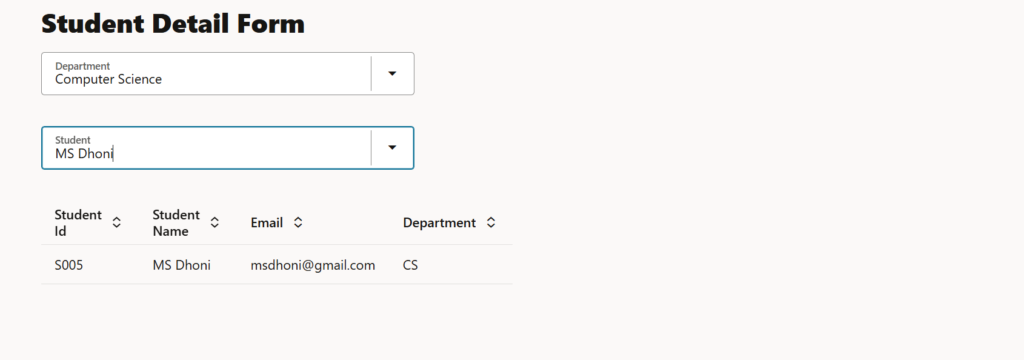
Final Output
Conclusion
This implementation ensures a clean and user-friendly dependent ComboBox behavior in Oracle VBS. By resetting the Student ComboBox value whenever the Department changes, you prevent stale selections and maintain data consistency. Using Business Objects, Service Data Providers, and Action Chains together results in a scalable, professional, and production-ready solution.