How to Read a Log File in Callback Integration

Scenario:

An integration is executed, for example an FBDI integration, where in the callback integration a text or log file needs to be read in order to extract required data such as Requisition Number, Invoice Number, etc.

During the integration execution, a request ID is received. Using this request ID, the content is identified and extracted from the file that belongs to the same request ID.

Approach:

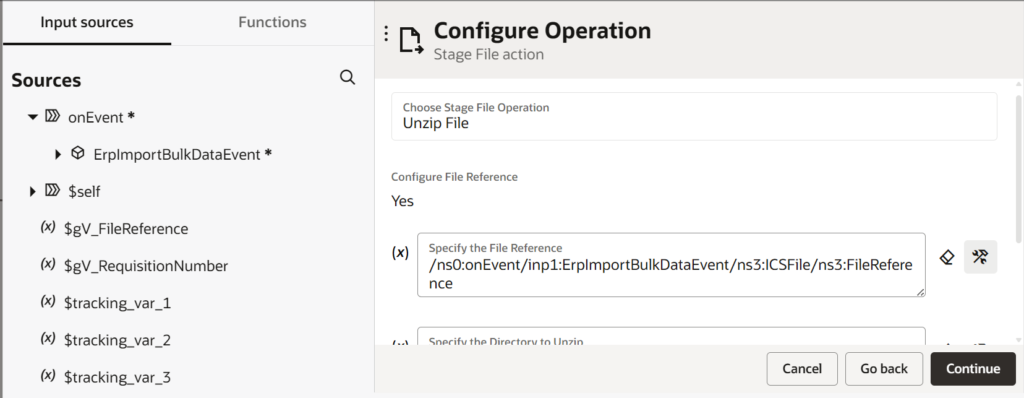
In a callback integration, the ERP Adapter response provides all output artifacts generated by the ESS job. These artifacts—including log files, text files, and CSV files—are delivered as a single ZIP file.

Step 1: Unzip Files:

The first step in the callback integration is to unzip this file, so that each individual output file can be accessed and processed separately.

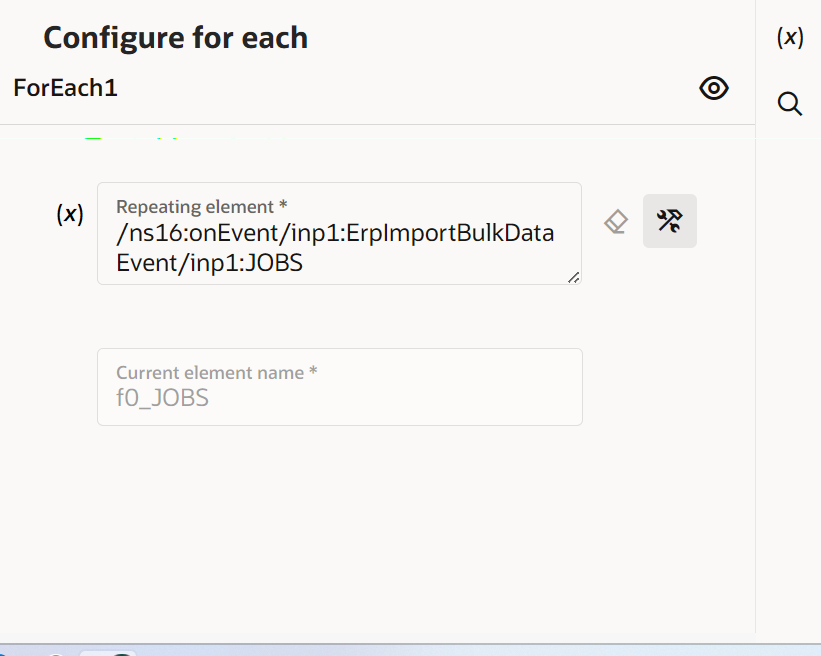
Step 2: Iterating Over JOBS:

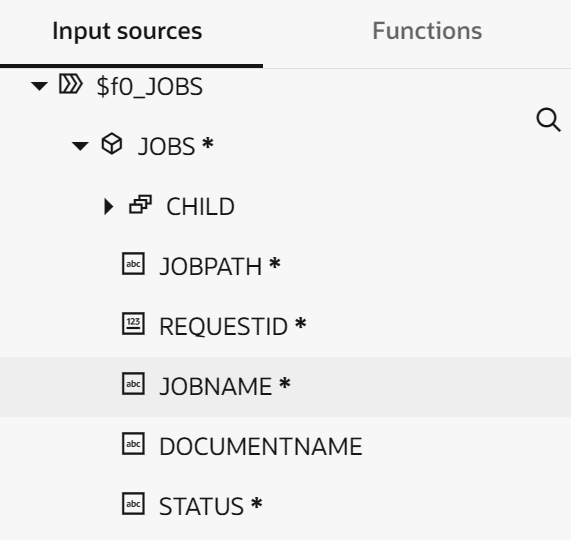
After unzipping the file, the integration iterates over the JOBS element returned by the ERP Adapter. Each job node contains important metadata such as:

  • Job Name
  • Job Status
  • Request ID

This loop allows the integration to capture and store the Request ID, which will later be used to identify the correct output file.

Inside loop we will be able to access all job names, status, request id for that job.

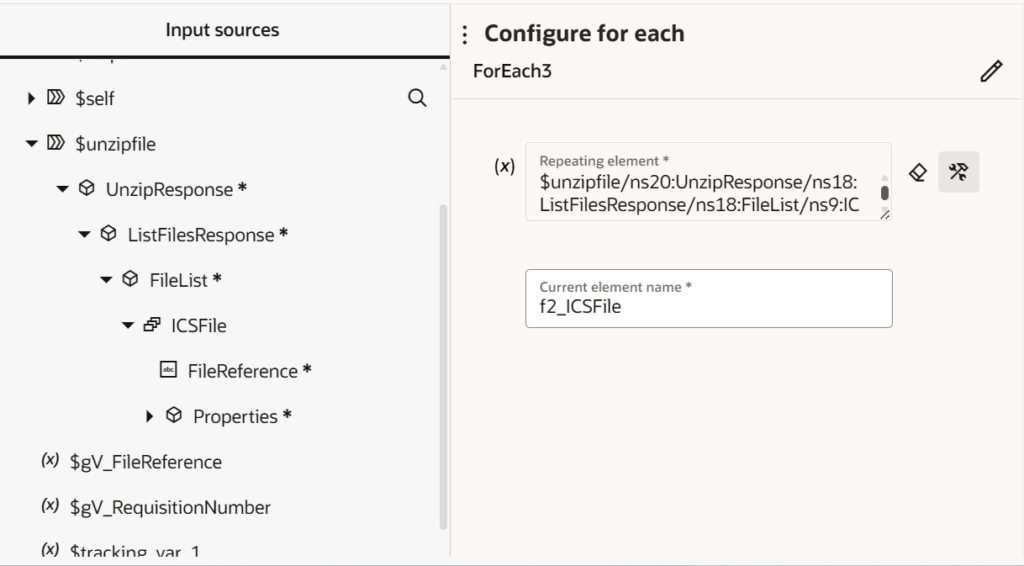
Step 3: Iterating Over Unzipped Files:

Once the Request ID is available, a second loop is introduced to iterate over all unzipped files.
This loop gives access to each file’s filename and file reference, enabling comparison with the Request ID obtained from the JOBS loop.

Step 4: Matching File Using Request ID:

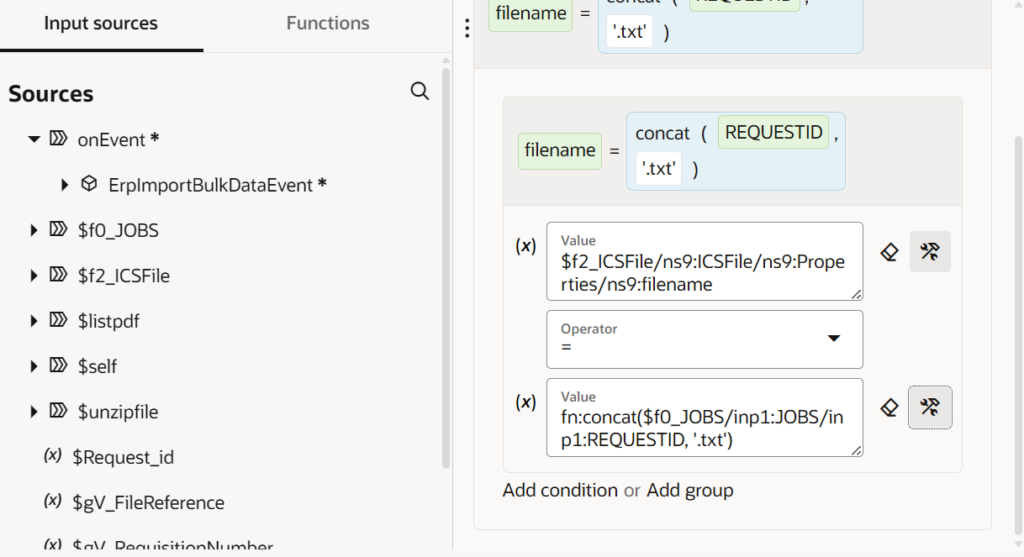
To identify the correct log or text file, a Switch or If condition is applied inside the secondary loop.
The condition compares:

  • The Request ID from the JOBS loop
  • The file name from the unzipped files
  • The file extension (for example .txt or .log)

If the filename matches the pattern Request ID + file extension, the integration confirms that the correct output file has been identified.

Step 5: Reading File Content:

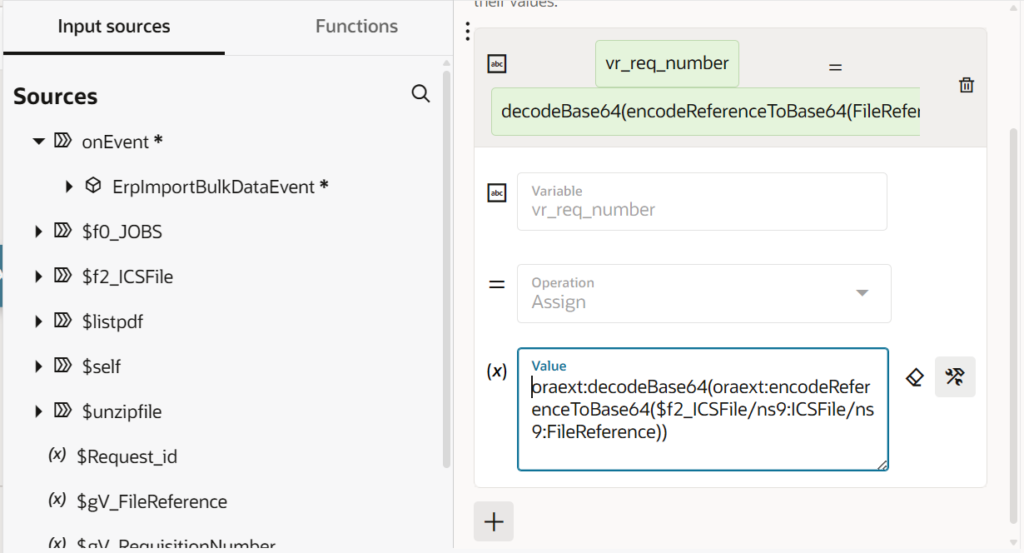
Once the correct file is identified, its content is accessed using the file reference.
The file is first read as Base64 encoded content and then decoded using Base64 decode functions.

This approach allows the complete file content to be stored safely in an integration variable.
Alternatively, the file content can also be written to a Stage File using an Opaque schema, depending on processing requirements.

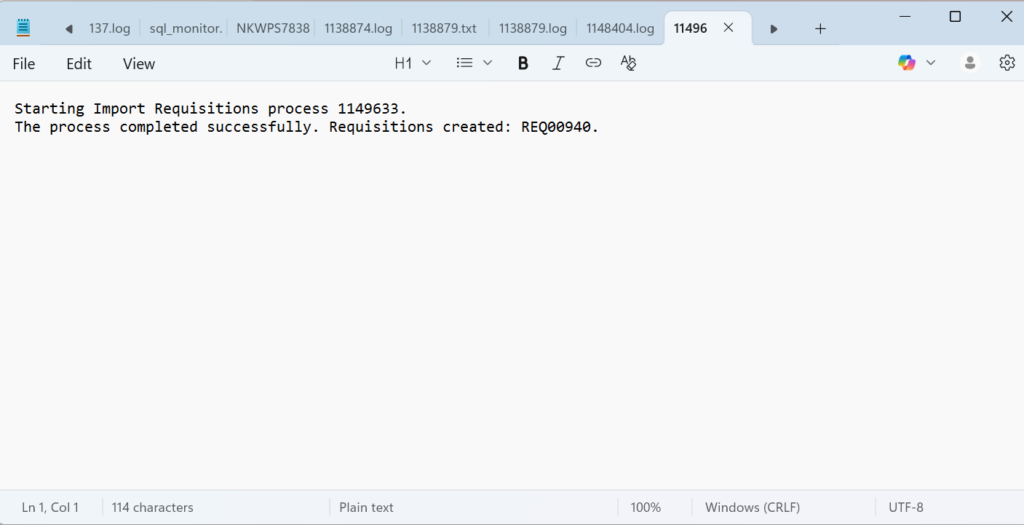
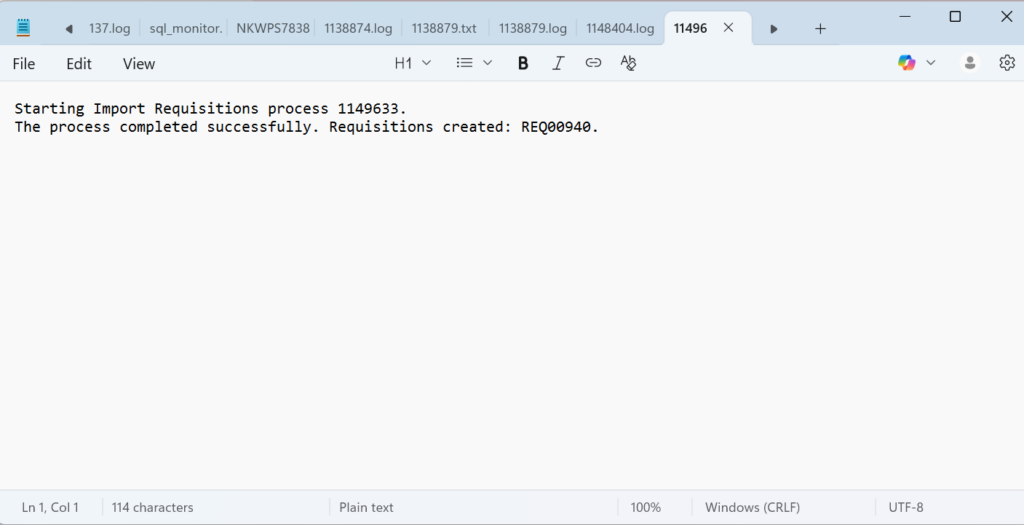
File content shown below will we stored inside variable:

Step 6: Extracting Business Data from File:

After decoding, the file content is available as plain text within the integration.
At this stage, string functions or XPath expressions can be applied to extract specific business values such as:

  • Requisition Number
  • Invoice Number
  • Batch Number

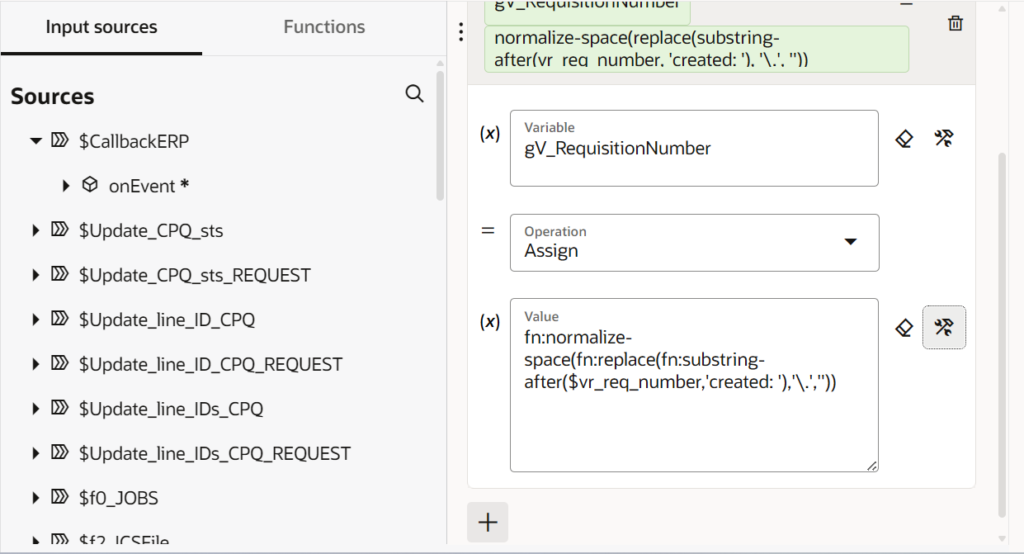
For example, in an FBDI Import Callback Integration, the requisition number can be parsed from the log or text file and stored for downstream processing or notifications.

This will store only Requisition Number inside the variable: REQ00940.

Leave a Comment

Your email address will not be published. Required fields are marked *

Scroll to Top