How to Call BIP Report in a VBCS Application
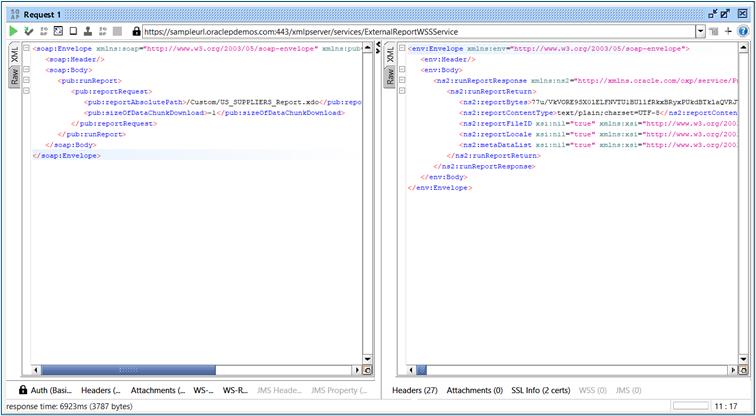
Part 1: Testing the BIP Report Web Service and acquiring URL and Request Payload using SOAP UI
Step 1: Obtain the WSDL and Load It in SOAP UI:
The standard WSDL URL for the ExternalReportWSSService in Oracle Fusion is:
https://<your_fusion_base_url>/xmlpserver/services/ExternalReportWSSService?WSDL
Step 2: Configure Authentication and Run a Sample Report:
Replace the sample request body with something minimal to test a known report. The default format of our report will be CSV. For example:
<soap:Envelope xmlns:soap="http://www.w3.org/2003/05/soap-envelope" xmlns:pub="http://xmlns.oracle.com/oxp/service/PublicReportService">
<soap:Header/>
<soap:Body>
<pub:runReport>
<pub:reportRequest>
<pub:reportAbsolutePath>/YourPath/YourReport.xdo</pub:reportAbsolutePath>
<pub:sizeOfDataChunkDownload>-1</pub:sizeOfDataChunkDownload>
</pub:reportRequest>
</pub:runReport>
</soap:Body>
</soap:Envelope>
Step 3: Capture the Endpoint URL and Sample Payload
- Endpoint URL: At the top of the request window in SOAP UI, you’ll see the exact service endpoint used.
- Sample Request Payload: Copy the full XML request body (the <soap:Envelope> block). This will serve as our request payload when configuring the SOAP service in VBCS.
Part 2: Create the Service Connection in VBCS
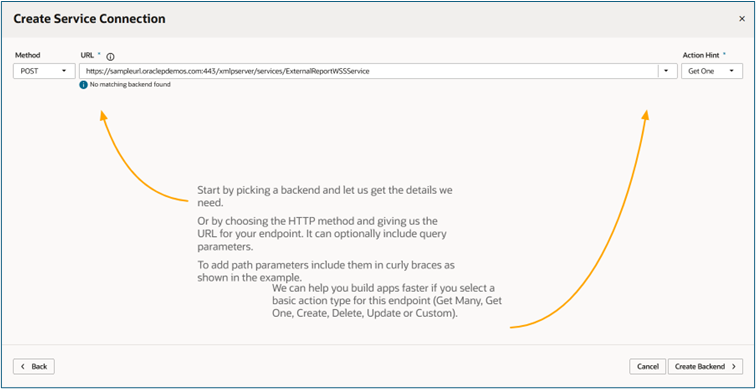
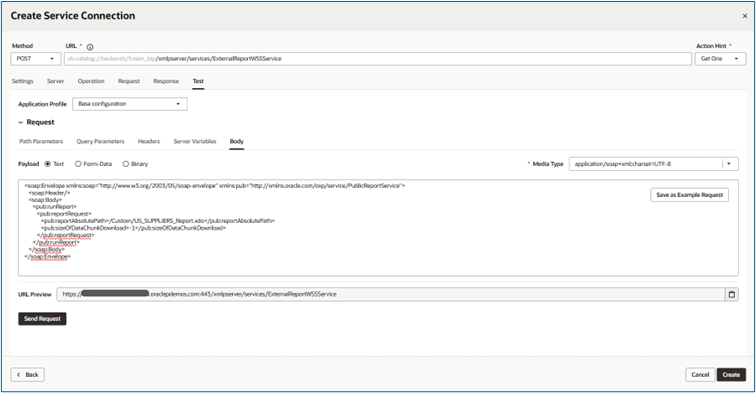
Go to Services tab → Service Connections → + Service → Define by Endpoint. Select REST (even though it’s SOAP — VBCS handles SOAP via REST endpoint).
Step 1: Configure the Endpoint
- Method: POST
- Action Hint: Get One (this helps VBCS treat the response as a single object)
- URL: Paste the endpoint from SOAP UI: https://<your_fusion_url>:443/xmlpserver/services/ExternalReportWSSService
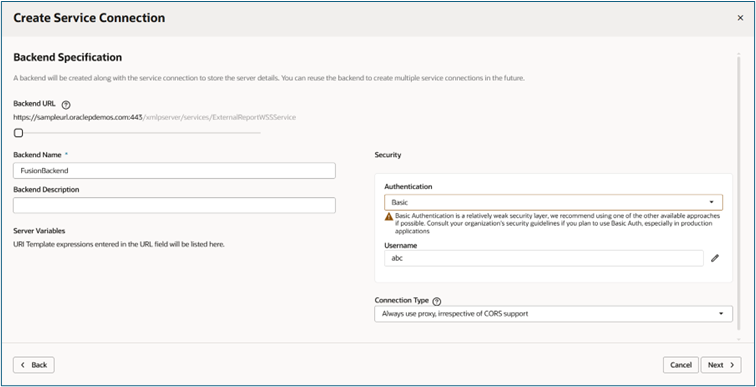
Step 2: Backend Configuration
- In the Backend Specification Page, enter a backend name.
- Authentication: Basic Authentication
- Enter your Fusion username and password.
- Connection Type: Select Always use proxy, irrespective of CORS support.
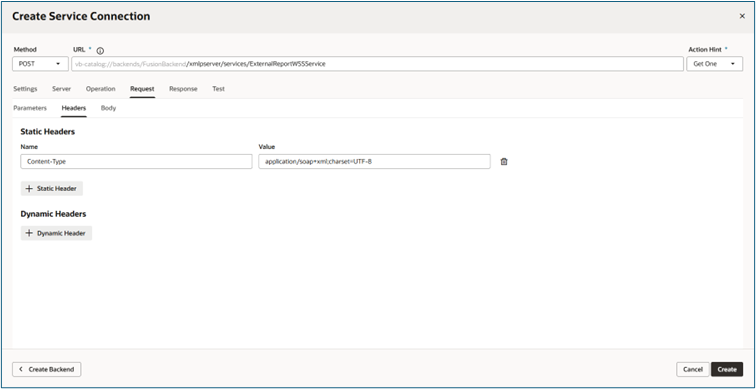
Step 3: Add Custom Header
- In the Next Page, go to Request tab → Headers section → + Static Header.
- Add:
- Header Name: Content-Type
- Value: application/soap+xml;charset=UTF-8
Step 4: Test the Connection
- Go to the Test
- Set Media Type: application/soap+xml;charset=UTF-8
- Paste the full SOAP XML request payload from SOAP UI (the <soap:Envelope> block).
- Click Send.
- If successful, you’ll see the report response.
- Click Save request payload as example.
Step 5: Finish Up
Click Create to complete the Service Connection.
Part 3: Display the Report Data on the VBCS Page
Now we’ll create the page structure, variables, and logic to call the service, parse the response, and display the data.
Step 1: Create a Type and ADP Variable for the Data
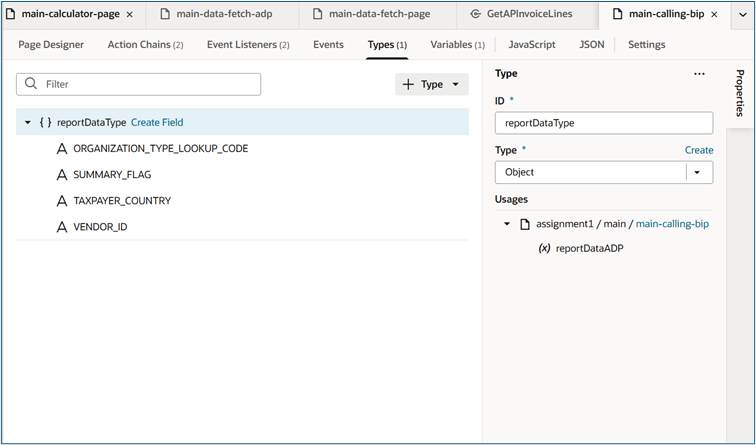
- In Types tab (page or app scope) → + Type → Custom.
- Add the necessary fields. In our case we are going to display these fields; VENDOR_ID,
SUMMARY_FLAG,
ORGANIZATION_TYPE_LOOKUP_CODE,
TAXPAYER_COUNTRY
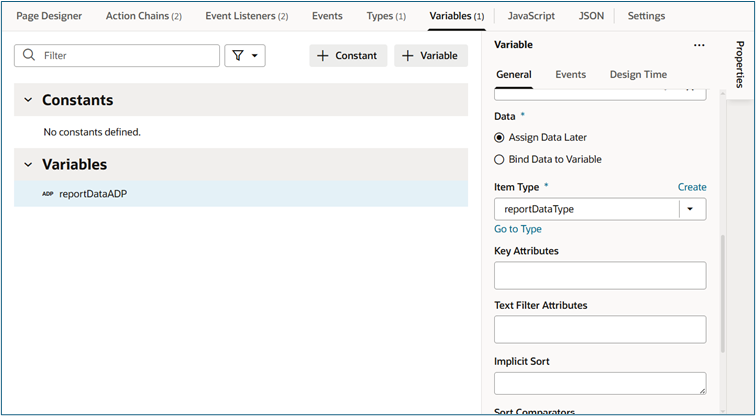
- Go to the Variables
- Create an Array Data Provider (ADP) variable:
- Name: reportDataADP
- Type: Array of Objects
Choose Datatype as the one you created before.
Step 2: Add UI Components
- Drag a Table onto the page.
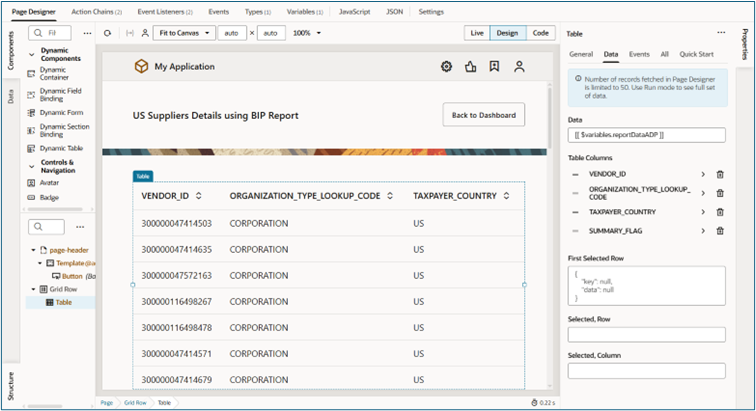
- Set its Data source to [[ $variables.reportDataADP ]]
Add columns for: VENDOR_ID, SUMMARY_FLAG, ORGANIZATION_TYPE_LOOKUP_CODE, TAXPAYER_COUNTRY.
Step 3: Trigger the Report on Page Enter
Select the Page → Events tab → vbEnter event → + Action Chain → Name it PageVbEnterChain.
Step 4: Implement the Action Chain
The Action Chain Code should look something like this:
define([
'vb/action/actionChain',
'vb/action/actions',
'vb/action/actionUtils',
], (
ActionChain,
Actions,
ActionUtils
) => {
'use strict';
class PageVbEnterChain extends ActionChain {
/**
* @param {Object} context
* @param {Object} params
* @param {object} params.event
*/
async run(context, { event }) {
const { $page, $flow, $application, $constants, $variables } = context;
// 1. SOAP payload to run the BIP report (output as CSV)
const BIPReportPayload = `<soap:Envelope xmlns:soap="http://www.w3.org/2003/05/soap-envelope" xmlns:pub="http://xmlns.oracle.com/oxp/service/PublicReportService">
<soap:Header/>
<soap:Body>
<pub:runReport>
<pub:reportRequest>
<pub:reportAbsolutePath>/Custom/US_SUPPLIERS_Report.xdo</pub:reportAbsolutePath>
<pub:sizeOfDataChunkDownload>-1</pub:sizeOfDataChunkDownload>
</pub:reportRequest>
</pub:runReport>
</soap:Body>
</soap:Envelope>`;
// 2. Call the Service Connection we created earlier
const response = await Actions.callRest(context, {
endpoint: 'Get_US_Suppliers/postXmlpserverServicesExternalReportWSSService',
body: BIPReportPayload,
});
// 3. If successful, parse the response and populate the ADP
$variables.reportDataADP.data = this.readBIPReportResponseData(response, context);
}
/**
* @param {Object} context
*/
// Helper function to extract and convert CSV data
readBIPReportResponseData(req) {
// Parse the SOAP response XML
const parser = new DOMParser();
const xmlDoc = parser.parseFromString(req.body, "text/xml");
// Extract base64-encoded report bytes
const base64ReportByte = xmlDoc.querySelector("reportBytes").textContent;
// Decode base64 to get raw CSV text
const base64DecodedReportData = atob(base64ReportByte);
// Split CSV into lines
const data = base64DecodedReportData.split("\n");
// Define column headers (must match report output order)
const titles = ["VENDOR_ID", "SUMMARY_FLAG", "ORGANIZATION_TYPE_LOOKUP_CODE", "TAXPAYER_COUNTRY"];
// Convert each row (except header) into an object
const jsonArray = data.slice(1).map(line => {
const values = line.split(",");
return titles.reduce((obj, title, index) => {
obj[title] = values[index];
return obj;
}, {});
});
return jsonArray;
}
}
return PageVbEnterChain;
});

Brief Code Explanation
- BIPReportPayload: Hardcoded SOAP XML that tells BI Publisher to run the specific report and return it as CSV.
- callRest: Calls the Service Connection (POST) with the SOAP payload.
- readBIPReportResponseData:
- Parses the returned SOAP XML.
- Extracts the <reportBytes> node (contains base64-encoded CSV).
- Decodes base64 using atob().
- Splits into lines, skips the header row.
- Maps each row to a JavaScript object using the defined column headers.
- Resulting array of objects is assigned to reportDataADP.data, which automatically refreshes the table.
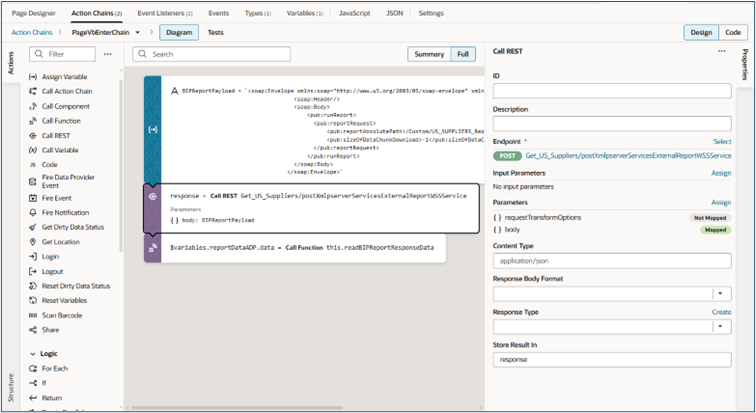
This is what the Action Chain will look like:
Your table will look like this after data is fetched: