Process of Uploading Property File Using FBDI in OIC
Introduction
In Oracle Integration Cloud (OIC), the properties file plays a special role when working with File-Based Data Import (FBDI) into Oracle ERP Cloud.
When you send data (like invoices, suppliers, or employees) to ERP, you package it into the FBDI CSV file.
Alongside the CSV, ERP also expects a job properties file inside the same ZIP package.
This properties file tells ERP:
Which job package to execute
Which job definition to call
What the ZIP prefix is
Any required job parameters
So, the properties file acts like a blueprint or instruction manual that ERP uses to process the uploaded FBDI file correctly.
CREATING THE JOB PROPERTIES FILE AND SUBMITTING TO ERP :
The FBDI Bulk Data Import process in ERP Adapter requires a Job Properties File. This file provides ERP with important details such as: • Job package name • Job definition name • ZIP file prefix • Job parameters (specific to the object being imported) You must generate this file and include it in the same ZIP as the FBDI file. The properties file must be in CSV format: <job package name>,<job definition name>,<zip file prefix>,<Param1>,…..<ParamN> The file name must use the extension of ‘.properties’.
Key Rule:
The third parameter must match the ZIP file prefix.
Example:
If your ZIP file is named:
AR_Invoice_20202402101010.zip
and it contains:
RaInterfaceLines.csv (the FBDI file)
ARInvoice.properties (the job properties file)
then the third parameter in the properties file must be: AR_Invoice
How to get Job Package and Name:
From Fusion Apps main page,
Click the Navigator, and then click Setup and Maintenance.
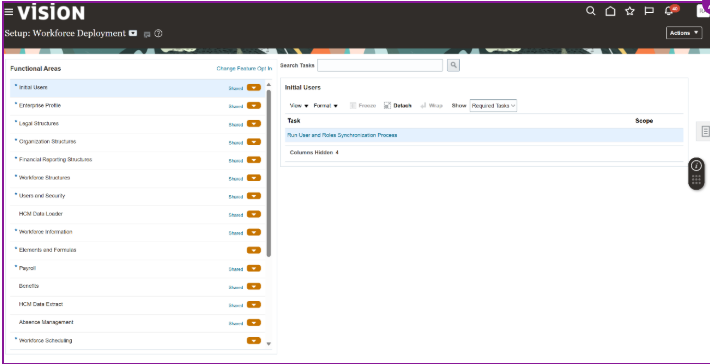
On the Setup page, select your setup offering such as Workforce Deployment
Click on right icon as shown above to search for “Manage Enterprise Scheduler Job Definition and Job Sets for Financial, Supply Chain Management and Related Applications”:
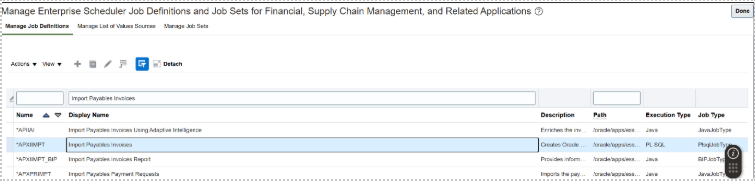
Select and Click “Manage Enterprise Scheduler Job Definition and Job Sets for Financial, Supply Chain Management and Related Applications” and search for “Import Payables Invoices” as shown below:
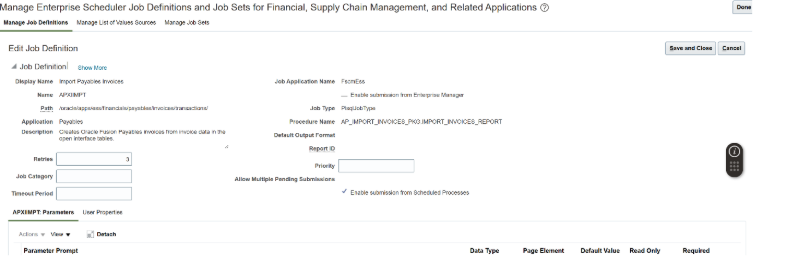
Select ” Import Payables Invoices ” row and click edit (please do not change anything as our goal is to get job package and name):
From above image, the job package is the PATH and job name is the NAME. These will be the first two columns in your property file for “Import Payables Invoices” with third column the sample prefix name of the zip file as suggested earlier:

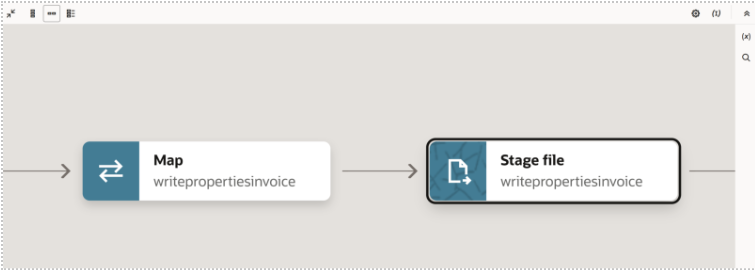



Informative Content