Creating an Event Trigger In BIP

In BI Publisher, sometimes we don’t want a report to run every time it is scheduled. Instead, we want the report to run only when certain data exists in the database.

A Schedule Trigger controls whether a scheduled report should run or not based on the result of a SQL query.

A Schedule Trigger executes a SQL query before a scheduled report job runs.

  • If the SQL query returns data → The report job runs.
  • If the SQL query returns no data → The report job skips

Note: A schedule trigger can be created in any data model in the catalog. It does not need to be in the same data model as the report. This allows the same trigger to be reused for multiple report jobs

Steps to create a schedule Trigger:

  1. Go to Data Model
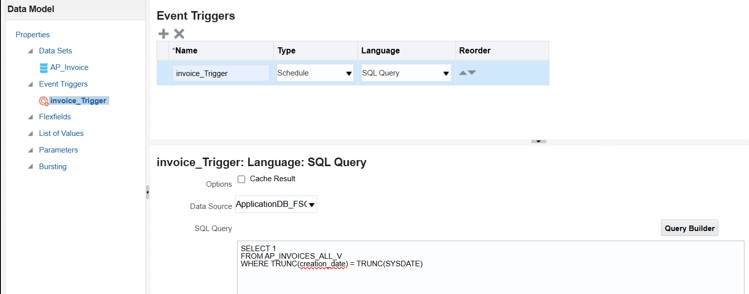
  2. Click on Event Triggers and create one
  3. Select Data Source according to the module you are working on and write the condition

Here we want this report should schedule only if invoices are created on the sysdate if not it will simply skip it

Example Query:

SELECT 1

FROM AP_INVOICES_ALL

WHERE TRUNC(creation_date) = TRUNC(SYSDATE)

AND ROWNUM = 1

Steps to Exceute the Event Trigger:

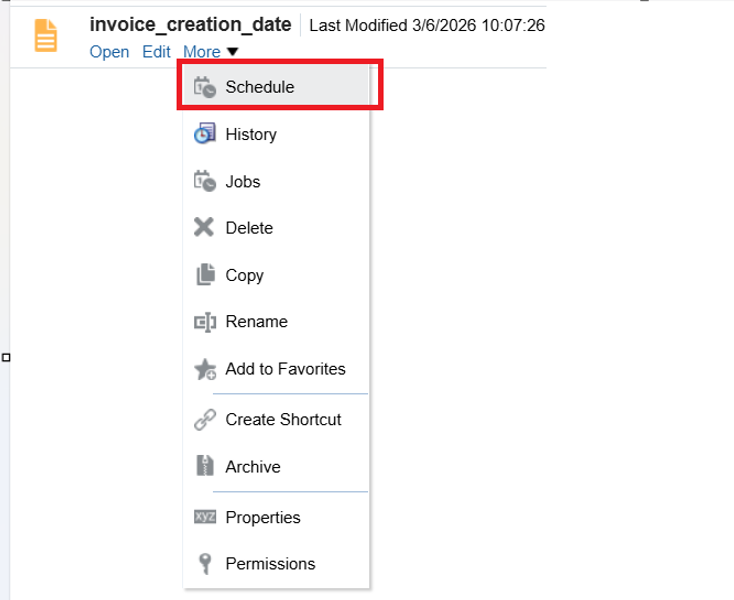
  1. Go to Your Report and Schedule it
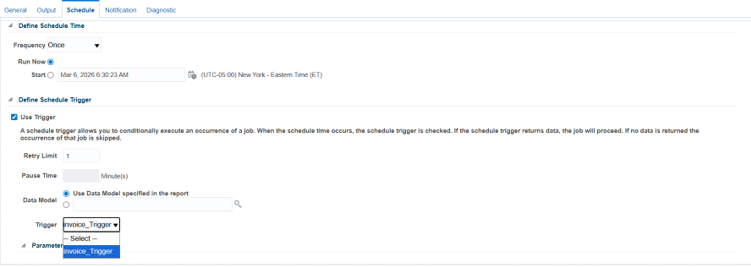
  2. Go to Schedule tab and click on use Trigger
  3. Select Data model of the Trigger
  4. Select your Trigger Name
  5. Submit the Schedule

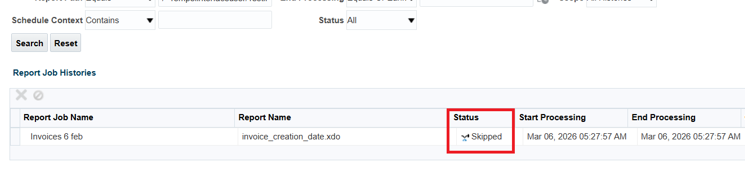
You Can See the status as Skipped .

Leave a Comment

Your email address will not be published. Required fields are marked *

Scroll to Top