DOWNLOAD FILES FROM UCM VIA SOAP API IN OIC GEN3

Establish the UCM Connection

Establish the UCM Connection Before we start building the logic the OIC needs to have a connection with the Oracle Fusion WebCenter Content server. This secure connection is really important. It is like a handshake, between the OIC and the Oracle Fusion WebCenter Content UCM server.
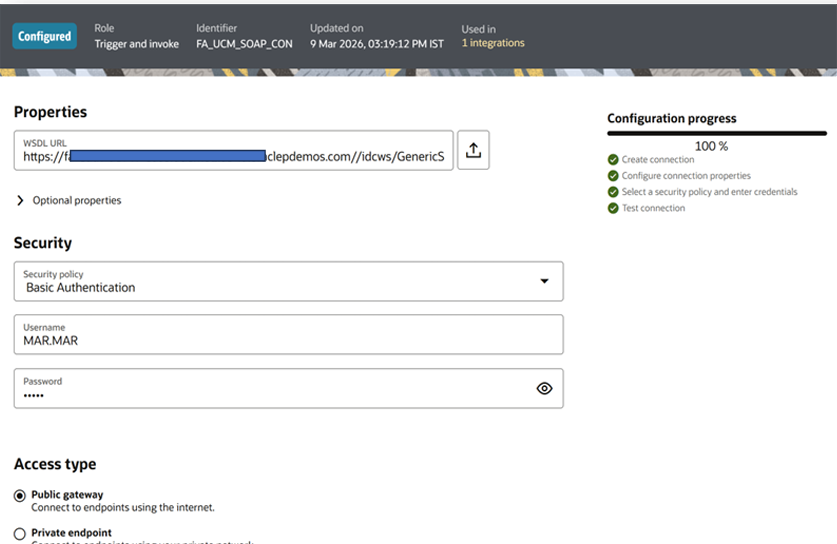
1. Locate the WSDL: Your endpoint is generally: https:///idcws/GenericSoapPort?wsdl.
2. Create Connection: Navigate to Design > Connections and select the SOAP Adapter.
3. Security Policy: Select Username Password Token.
4. Credentials: Use a service account that possesses the Integration Specialist role in Fusion.
5. Test: Ensure the connection reaches 100% success.

We need to set up the Integration Flow

We will use an App-Driven Orchestration to allow a real-time request for a specific file via
its Content ID.
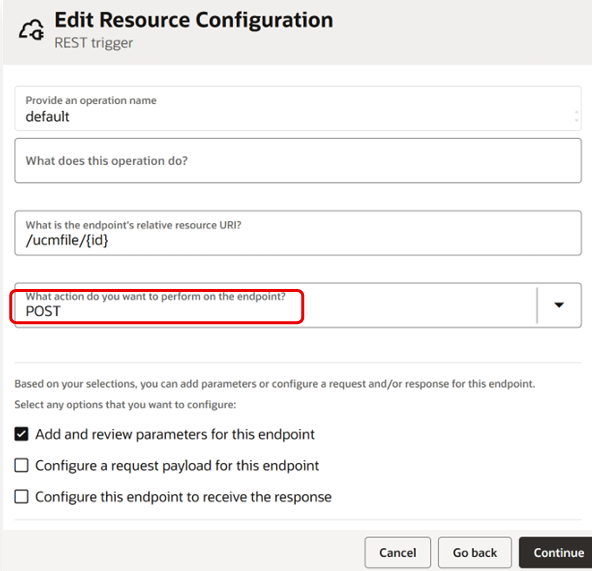
1. Trigger: Use a REST Adapter as the trigger. Define a POST operation that accepts
a ContentID as a template parameter or JSON payload.

2. Invoke UCM: You need to take your UCM SOAP Connection and drag it into the flow. This
should be done after you have set up the trigger. Make sure the UCM SOAP Connection is in
the place in the flow, which is, after the trigger.
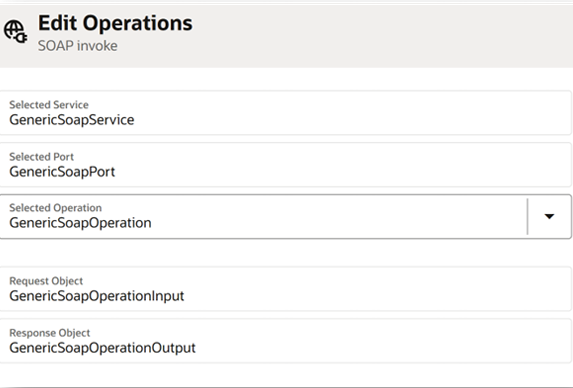
3. Configure Operation:
o Select operation: GenericSoapOperation. (This operation allows calling multiple UCM services
like getFile , search)

• The Mapping
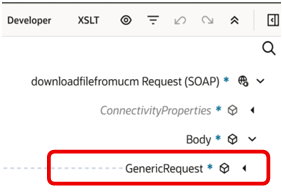
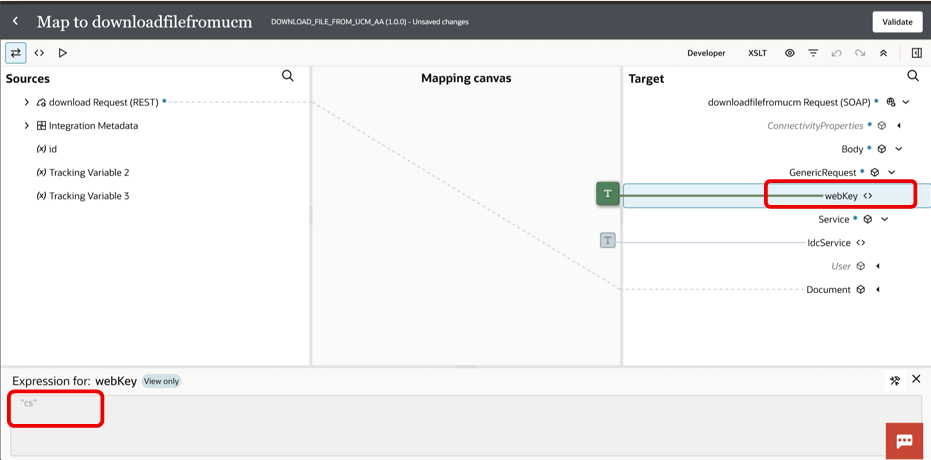
The UCM SOAP API needs identifiers to find a file. So in the mapper, you have to open up the
GenericRequest node.

Then you need to define the following:
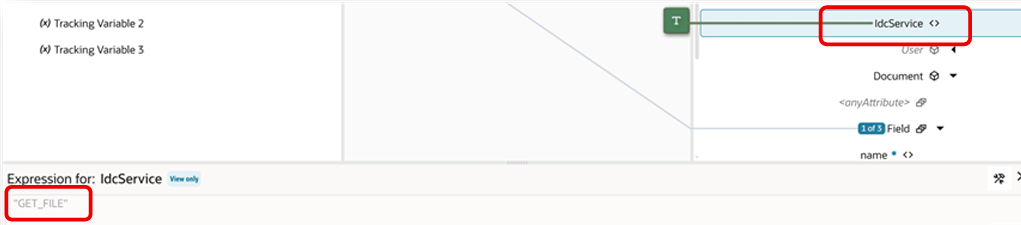
1. IDC Service: Hardcode this string as “GET_FILE”.

2. WebKey: Hardcode this string as “CS”.

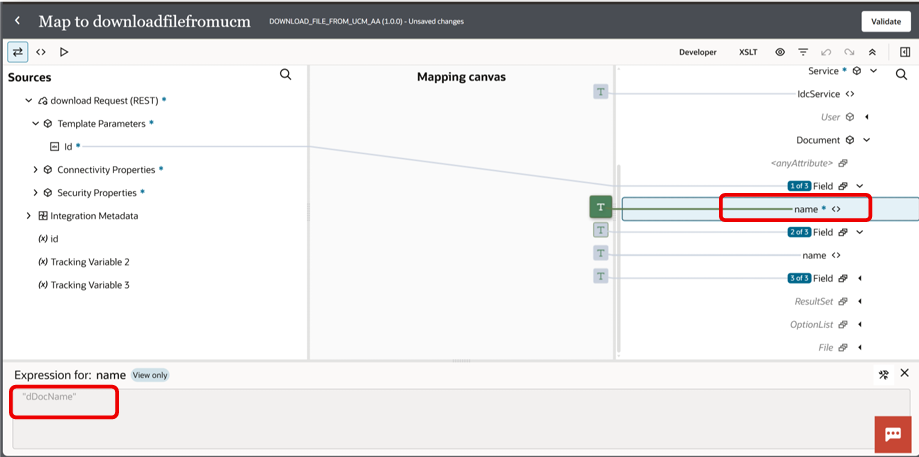
3. Id: Map source id to target field and hardcode “dDocName” in name field.

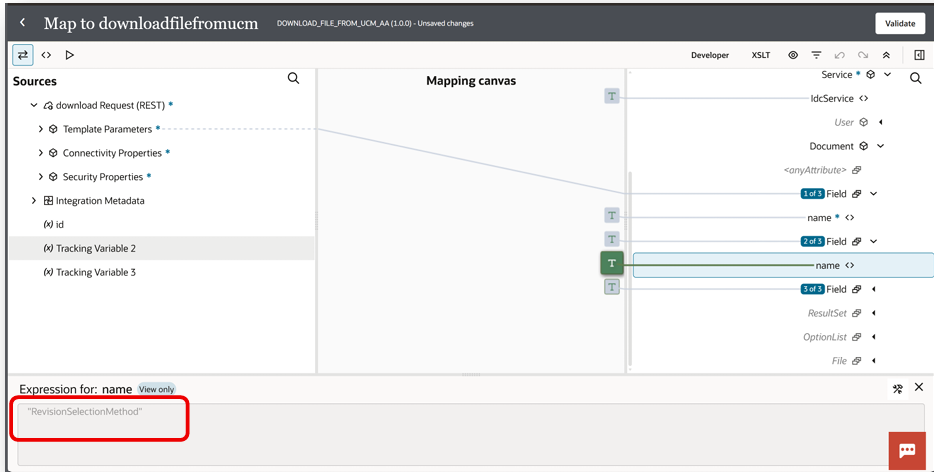
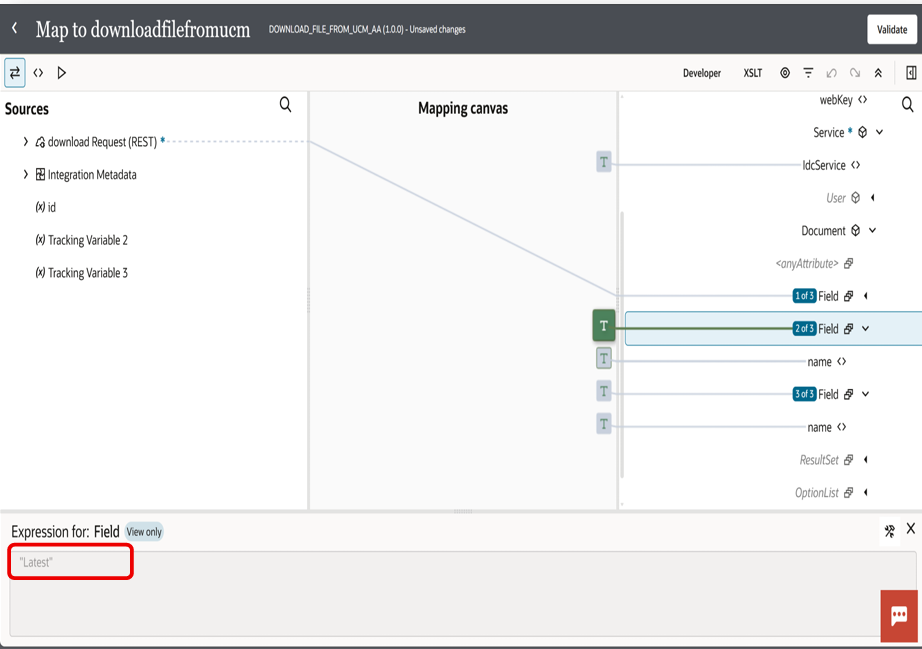
4. Field (Revision Selection): Create a Field node. Set name=”revisionSelectionMethod” and
value”Latest”(If multiple versions exist then pick latest).

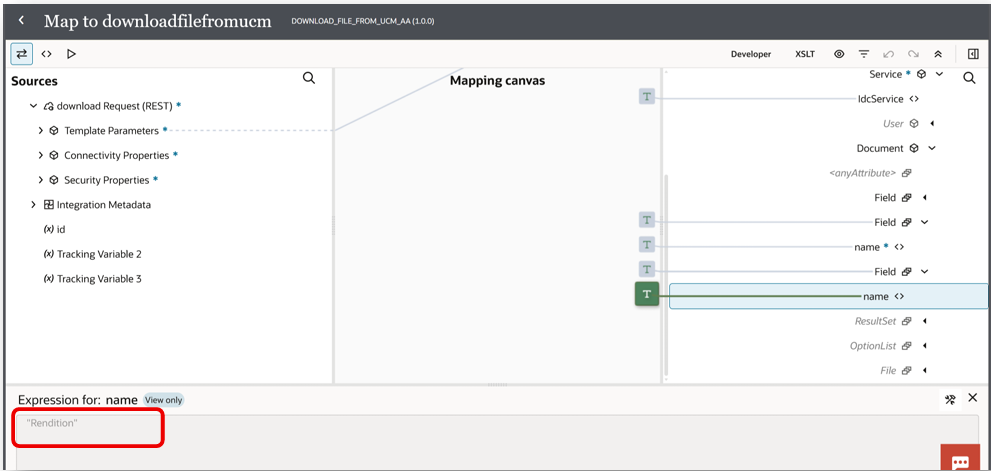
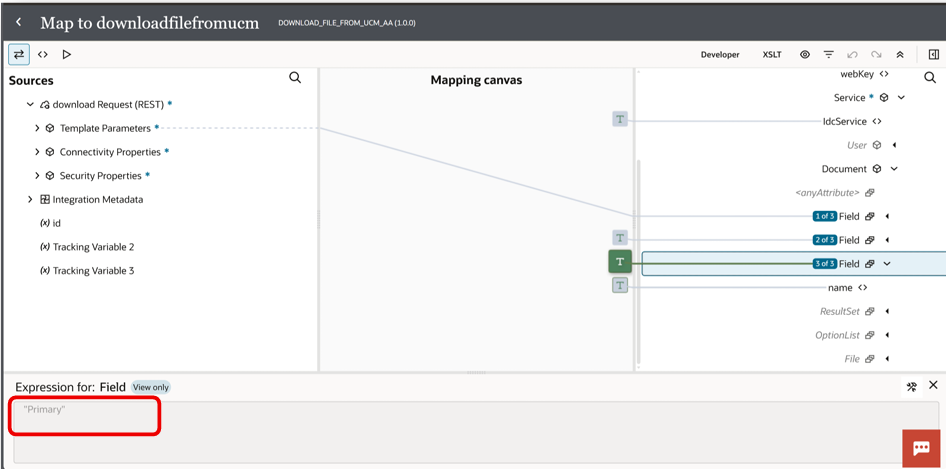
. Field (Rendition): Create another Field node. Set name=”Rendition” and value=”Primary”(Get
main file (PDF, DOC, etc.)).

• Creating stage(write) file and mapping
1. Add a Stage File action after the SOAP call.
2. Choose Write File.
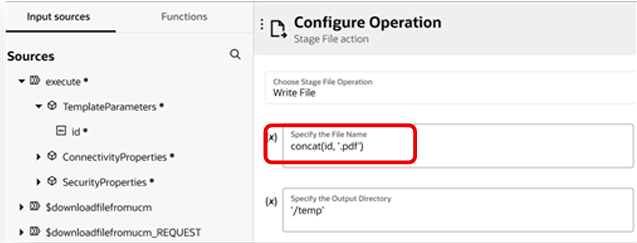
3. File Name: Dynamically name the file (e.g., concat the ContentID with .pdf).

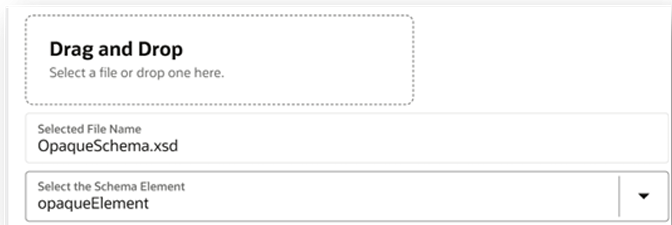
. Schema: Use an Opaque Schema, opaque.xsd.This allows OIC to handle the raw binary data directly.Our file is in format like pdf or doc.OIC cannot parse files as XML or CSV.So Opaque Schema helps OIC to manage the binary data without trying to parse it.The Opaque Schema is
really helpful, in this case.It makes sure OIC handles the binary data correctly.

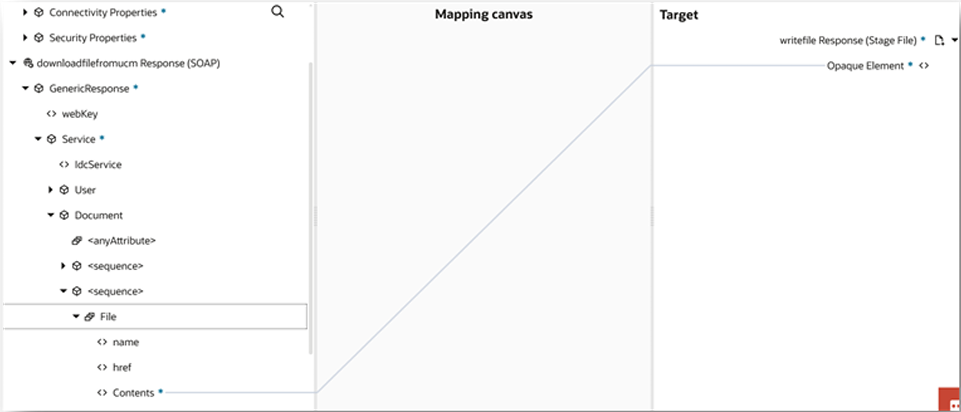
5. Mapping: Map the Content from the UCM response to the Opaque element

• Transmit via Notification and test
Now that the file exists in the OIC “Stage” area, you can attach the reference to an email.
1. First you need to add a notification: Configure the To, From, and Subject.
2. Next you have to add an attachment to this notification: Attach file from the stage file.
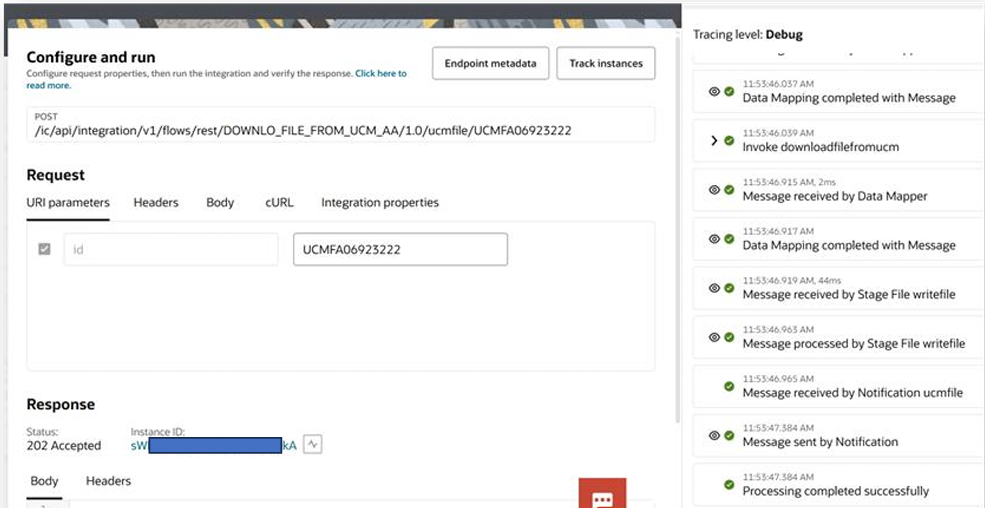
3. Now it is time to test this notification: Use the Run tool in OIC. Pass a valid ContentID from
your Fusion environment and
check.

Leave a Comment

Your email address will not be published. Required fields are marked *

Scroll to Top